

Picture a WordPress site where AI agents act like quiet, paying visitors. They browse, buy, and pull data without interrupting anyone else on the page. Paired with PayLayer, x402 makes that happen. It enables AI-driven commerce on WordPress and runs the payments in the background.
Monetizing AI bot traffic has been a headache. Bots get blocked or treated like normal visitors, and revenue slips away. With x402, those agents ask for access and pay on the spot. Real people keep scrolling without popups or paywalls. The exchange runs through HTTP headers, so the flow stays clean.
This opens new revenue paths that were hard to reach. Charge per data request, like API-style access to structured details on selected posts or pages, or let an AI personal shopper add WooCommerce items to a cart and check out on its own. Machine-to-machine purchases happen quietly, and sites get paid for interactions that used to vanish.
What you need before you start the X402 WordPress integration
- WordPress admin access and WooCommerce setup: Full admin rights are required to install plugins and change settings. WooCommerce is optional unless you plan to sell products through AI agents, so have it ready only if sales are part of your setup.
- Pretty permalinks enabled and REST API accessible: The site needs clean URLs for x402 to communicate with it. Confirm no security plugin or hosting rule blocks the REST API, since PayLayer depends on those endpoints for AI actions.
- HTTPS with a valid TLS certificate: Secure connections are required. AI bots and payment systems won’t run over plain HTTP. Verify the SSL certificate is current and installed correctly.
- Prepare test content: Create one WooCommerce product for purchase tests, plus a sample post set as AI-paid content to confirm the integration works end to end.
- Staging environment accessibility: When trials run on a staging site, it must be reachable from the public web or have AI traffic whitelisted. Private sites behind basic authentication prevent the required protocol handshakes.
How to install PayLayer and complete the X402 setup
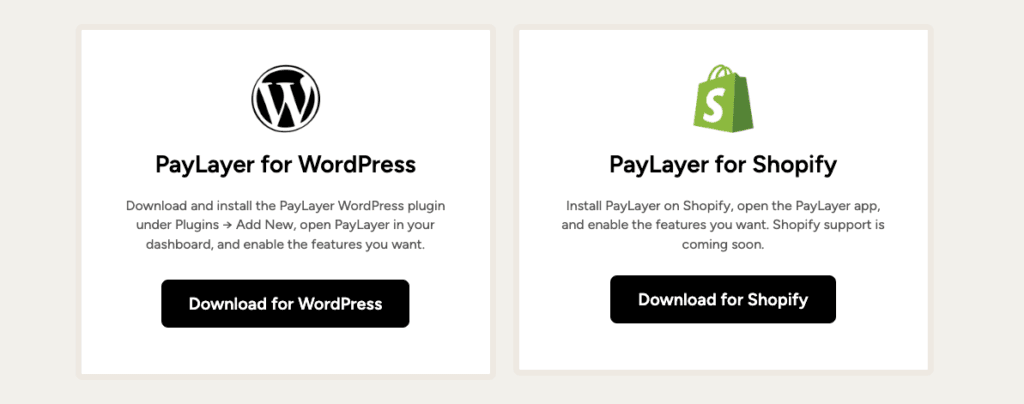
- Go to the WordPress admin dashboard, open Plugins, and choose Add New. Search for “PayLayer,” confirm the publisher is PayLayer.org, then click Install and Activate. You can also click here to download PayLayer.
- After activation, a “PayLayer” menu appears in the left sidebar. Click it to launch the guided setup.
- The setup wizard is straightforward. Confirm the site URL, switch on WooCommerce integration if it’s installed, and choose how AI visitors access content, with or without paywalls.
- Click Complete. The plugin then registers your site’s x402 endpoints and applies required headers for clean communication with AI agents.
- When it finishes, open the dashboard. It shows your x402 endpoint URL, the timestamp of the last AI bot handshake, and a status check that WooCommerce hooks are active if enabled.
Activating PayLayer handles the background work so AI-driven commerce starts quietly on a WordPress site. With endpoints in place and payment channels live, invisible transactions run without interrupting human visitors.
How to configure paid content access for AI agents
PayLayer lets site owners charge AI agents for specific content while keeping the site free and smooth for human visitors. AI bots get quiet payment prompts in the background, and people reading WordPress posts or pages just see the content.
- In Content Access settings, turn on “Charge AI agents for selected content,” set a default price, and pick a unit like per post view to start quickly.
- Each post or page has a PayLayer meta box for custom pricing. Set a unique fee, override the default rate, or mark that item free for AI agents.
- When an AI agent requests protected content, PayLayer returns x402 challenge headers with pricing and payment steps. Humans still see the full article with no paywall.
- For large sites, assign prices by category or tag to avoid editing prices on every post.
- Analytics show paid views, revenue by post, and which agent IDs paid. Use this data to tune pricing based on real results.
Enable programmatic payments for WooCommerce shoppers
Turning on WooCommerce integration in PayLayer lets AI personal shoppers buy products automatically without interrupting regular visitors. Programmatic payments run in the background, so AI agents add items to carts and check out on their own.
- Flip the switch in PayLayer’s Commerce settings to expose product data and purchase options through the x402 protocol. AI shoppers get access, while human checkout stays the same.
- Ensure products have clear SKUs and accurate stock details. Price, availability, and shipping classes need to be correct for reliable purchases.
- Behind the scenes, PayLayer turns each step, from add-to-cart through payment, into machine-readable commands. No template edits or checkout page changes for humans.
- Create AI-only deals if needed. Offer bulk discounts or per-request fees that don’t affect what normal shoppers see.
- Orders from AI agents include tags with origin notes and payment references, making automated sales simple to track.
Automation runs next to everyday shopping without friction. Human visitors keep the usual flow, while smart bots process purchases quietly in the background.
Protect content while keeping SEO intact
Search traffic matters because real people arrive from Google and other engines. If a paywall blocks their crawlers, rankings drop and organic visits fall. PayLayer focuses on automated consumers only, so everyday visitors and trusted SEO bots read the same content as everyone else.
- PayLayer identifies AI agents through user agent checks, header negotiation, and behavior signals. Only confirmed automated consumers see payment prompts.
- Human visitors and approved crawlers get full access, with no cloaking or hidden pages. Search engines view the exact content visitors see.
- Publishers may add guidance in robots.txt or x-robots tags for known AI crawlers. PayLayer avoids essential SEO bots automatically.
- When an AI bot pretends to be a browser, it won’t receive the x402 headers used for paid access. Repeated attempts trigger rate limits to prevent abuse.
Sites often share public excerpts and reserve full articles for AI agents under paid terms. People still discover content through search, while publishers protect data from unauthorized scraping and invite fair licensing.
How to test your X402 integration end to end
- Open the PayLayer dashboard and run the Test Agent tool. It mimics an AI bot asking for a protected post, so it’s easy to check whether x402 challenge headers show up and whether payment prompts respond correctly.
- Create a small test post priced at $0.01 and add a low-cost WooCommerce product for purchase trials. Complete the full automated buying flow, add the item to the cart, finish checkout, then confirm the test order in WooCommerce’s Orders section.
- Inspect HTTP responses for protected content with the browser’s network panel or curl. Look for x402 headers only on resources protected by PayLayer, and verify human visitors don’t get those headers.
- Review server logs for requests to x402 endpoint routes during tests. AI agent traffic should hit those endpoints, while normal visitors to the same URLs pass through without a challenge or payment step.
- If security plugins or a web application firewall cause handshake failures by blocking the route, add allow rules for the exact endpoint shown in PayLayer’s status screen so AI agents can connect without interruptions.
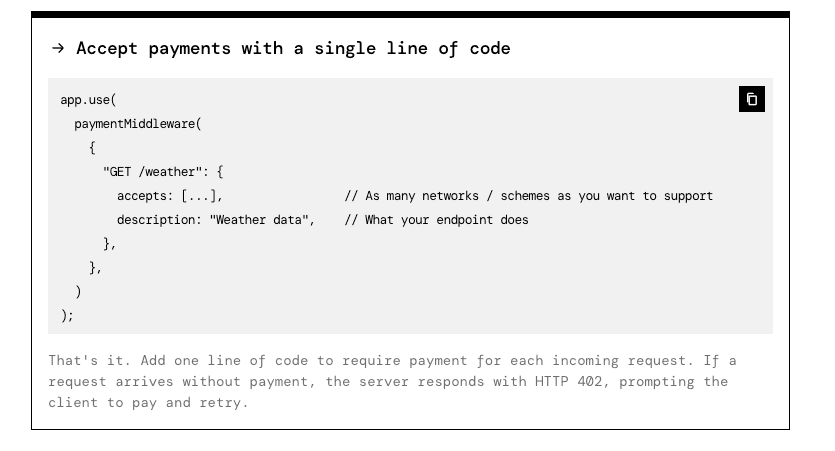
What to do next with AI payments on WordPress using PayLayer
Getting AI payments working on WordPress with PayLayer is only step one. Start with a few high-value posts and top products. Learn how AI agents behave before rolling it out wider. Check results each week. See what gets paid access and what sits idle. Avoid locking down low-demand pages that don’t need protection.
Test different prices by category. Technical guides might support higher fees, while opinion pieces may pull fewer buyers. Make small, safe changes, then follow the data. Let results drive the next move, not hunches.
Watch for red flags like repeated access attempts without payment. When that shows up, tighten rate limits in PayLayer’s settings. It acts like a firm gate at the door. Over time, compare who pays and who doesn’t. Build a list of trusted agents that get free passes, and block bad actors.
Use these findings to improve the content itself, not just pricing. Add clear product details. Label posts in a way machines understand. Cleaner structure helps AI buyers find what they want and convert without noise.
This isn’t set-and-forget. It’s steady tuning. PayLayer handles machine-to-machine payments on WordPress, and each tweak pushes revenue in a smarter direction.
Leave a Reply